World creation: the choices that stick
World creation fixes your map size and whether the bundled prefab content is imported. Everything inside the map - terrain, regions, zones, factions - stays editable afterwards.
World creation asks for very little, and most of it is permanent. That is the whole reason this page exists: the screen looks like a formality, but two of its choices follow you for the life of the world.
What the screen actually decides
| Choice | What it changes | Change it later? |
|---|---|---|
| Map size | How much terrain exists, and how far the camera can pull back | Treat it as fixed; build a new world if you need more room |
| Default prefab content | Whether the bundled example content is imported into your world | Set at creation; the toggle lives on this screen |
| World name and folder | Where the world is stored on disk | Rename the folder at your own risk, not from inside the game |
| Save format | The versioned save container the game writes | Managed by the game, with corruption protection |
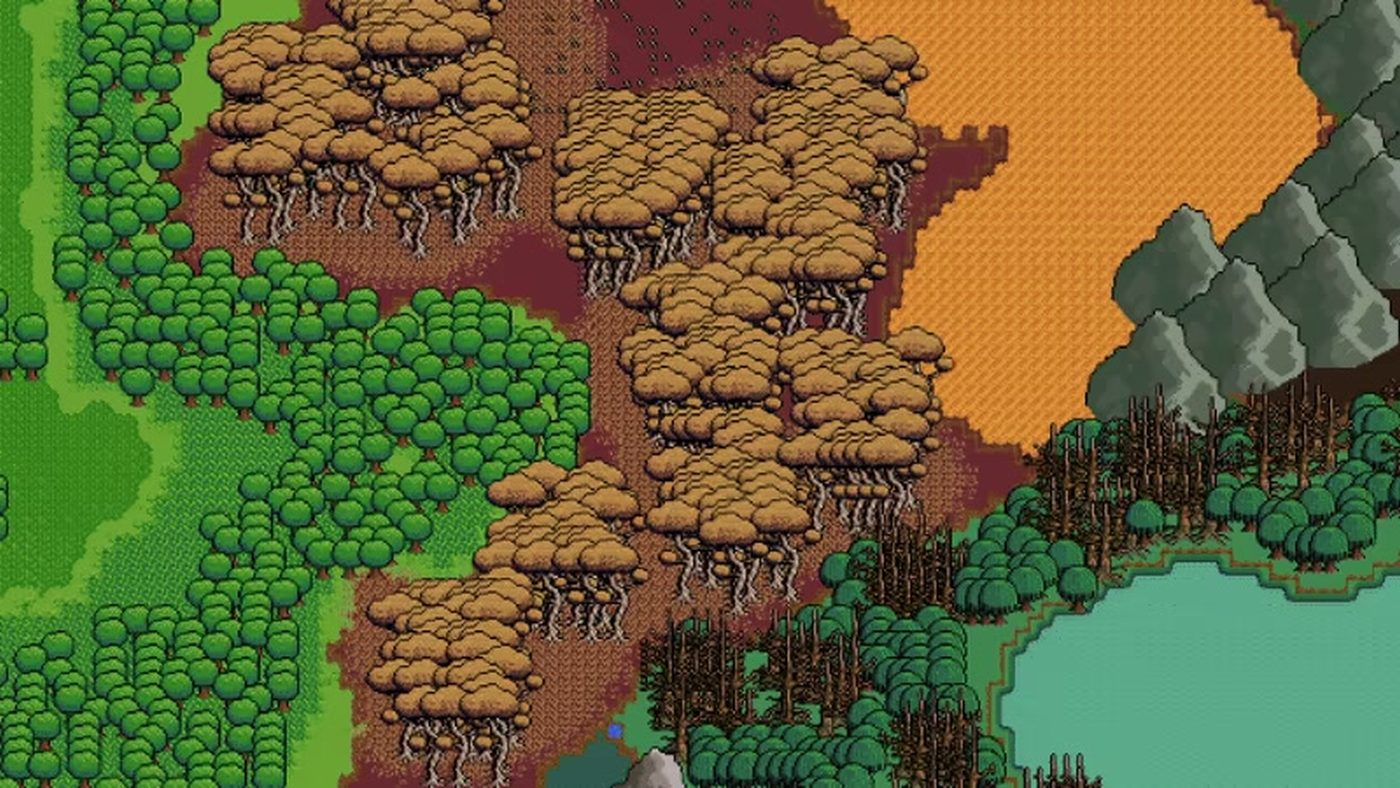
Everything else - terrain, regions, zones, factions, races, monsters, items, equipment, points of interest - is editable after creation. Nothing about the world's content is decided here.
Map size is a design decision, not a preference
The instinct is to take the biggest option. Resist it for the first world. Map size determines how much empty space the simulation has to spread across, and empty space is where behaviour goes to die: factions that never meet, creatures that spawn out of sight, quests that resolve somewhere you are not looking.
A useful rule: choose the size at which you can still see borders change without scrolling. When you outgrow it, you will know exactly which system you are outgrowing, and the second world will be better for it.
The prefab toggle is a teaching tool
Fantasy World Manager ships with a default prefab: pre-created editor content that can be imported into a new world. It is the fastest way to see what finished content looks like - a zone with rules attached, a settlement with buildings that path correctly, a template library with entries in it.
For a first world, leave it on and take it apart. Open the region inventory, open a zone, read the fields. You will learn the intended structure faster than by building one from nothing.
For a second world, turn it off. Building from empty is where the editors actually click, and the prefab's presence makes it too easy to accept defaults you did not choose.
Where the world lives
Each world gets its own folder, and editor content is stored inside it. A world folder contains subfolders per content type - point of interest templates, for example, live under a poi/templates path inside the world directory. This matters for three practical reasons:
- Backups are file copies. Copy the world folder and you have a backup that does not depend on the game's own save menu.
- Prefab exports are portable. A prefab is content you can move between worlds, which is how the Workshop categories in the sharing guide work.
- A corrupted save is recoverable. The launch build writes versioned save files with corruption protection: if an update breaks a save, the original file is kept intact and works again once the break is fixed.
Saves, versions and the update problem
Early Access means updates, and updates mean saves written by an older build. The protection the developer added before launch keeps the original file rather than overwriting it, so a broken save is a waiting problem rather than a lost world. It is still worth keeping your own copy of the world folder before a major update - the roadmap has three of them in 2027.
A sensible first-world recipe
Small map, prefab content on, one region, two or three zones, one settlement. Play a hundred in-game days. Then start the real project with the prefab off and everything you learned about zone rules already in your head.
The beginner guide walks that first world step by step, and the world editor basics covers the tools you will use immediately after creation.